


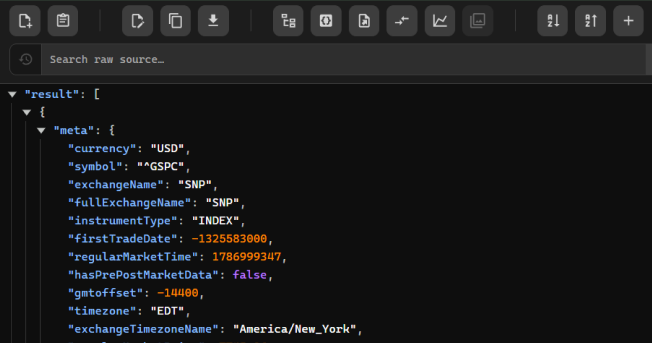
Large files overwhelm tabs
Heavy payloads can cause OOM errors or an "Aw, Snap!" crash in ordinary viewers.
 JSON All-in-One
Heavy payloads can cause OOM errors or an "Aw, Snap!" crash in ordinary viewers.
Deep objects and arrays make important paths difficult to follow.
Ordinary parsing can silently corrupt high-precision numeric values.
JSONC and NDJSON need format-aware handling, not blind JSON parsing.
Search source text, property names, values, or comments without losing the surrounding structure. Switch modes to narrow results, then move through matching results while the corresponding JSON path stays visible.
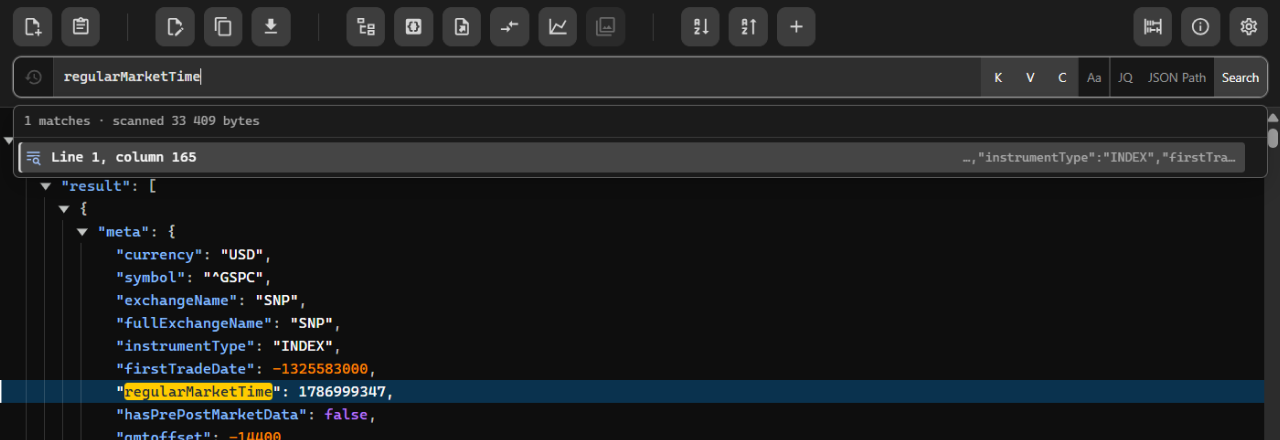
Limit matches to property names and navigate directly to their paths.
Search strings and scalar values while keeping each result in context.
Find notes inside JSONC and NDJSONC without treating them as data.
Choose exact-case matching or a broader case-insensitive search.
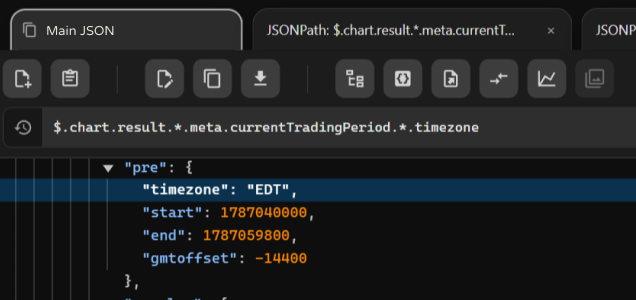
Run RFC 9535 JSONPath queries locally to select exact nodes in deeply nested data. Autocomplete structural paths, revisit query history, highlight mapped results in the source, and open derived result tabs without sending the document to a server.
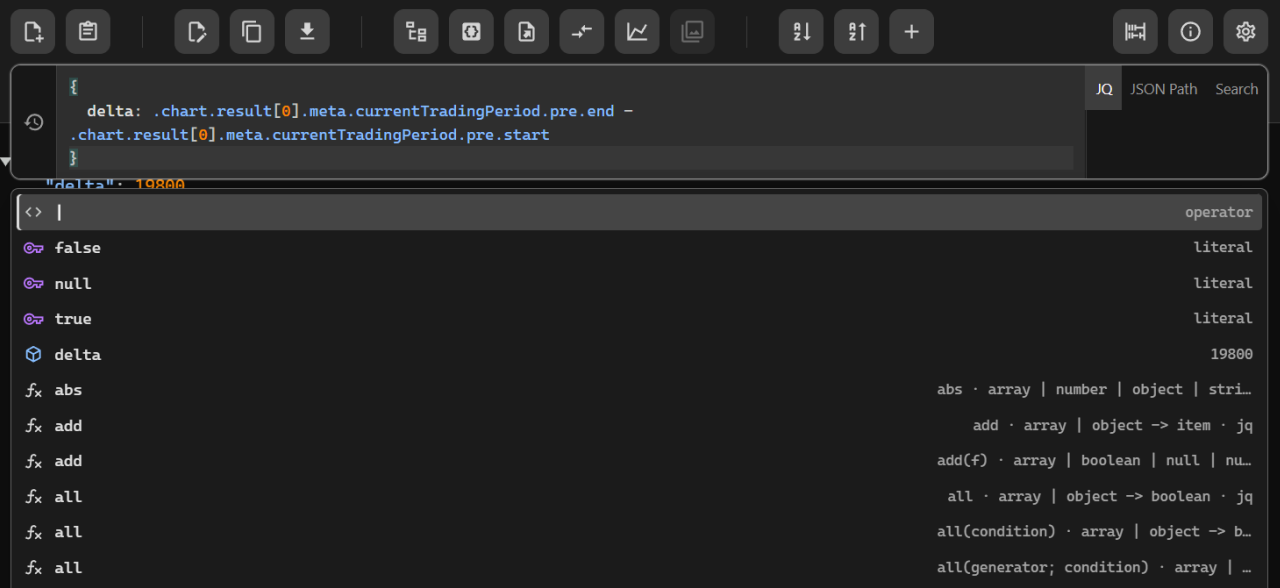
Filter, reshape, calculate, and extract data with local JQ. Save your most useful expressions as named aliases, reuse query history across matching sources, and ask an optional configured AI provider for a starting expression when a transformation gets complex.
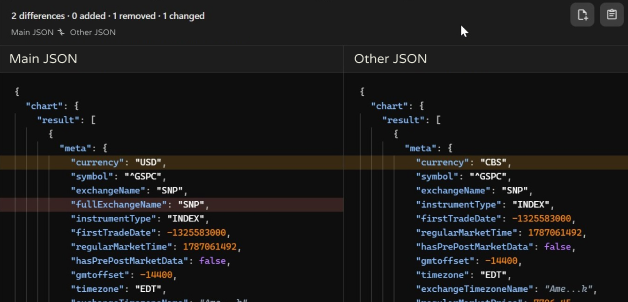
Compare two documents by keys, values, types, and nested structure. Consistent formatting and focused difference views make changed, missing, and added data easier to review than a line-by-line text diff.
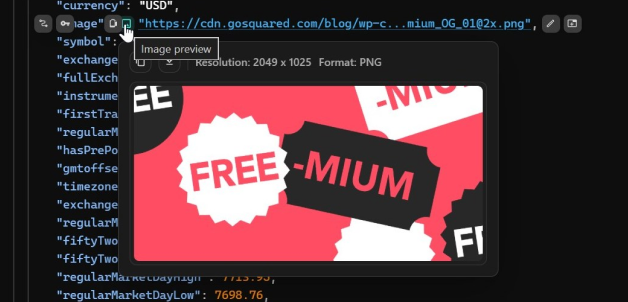
Detect image URLs stored in JSON values, preview the candidates you choose, and download selected images in bulk. Network requests happen only after you enable image detection, keeping the default inspection workflow local.
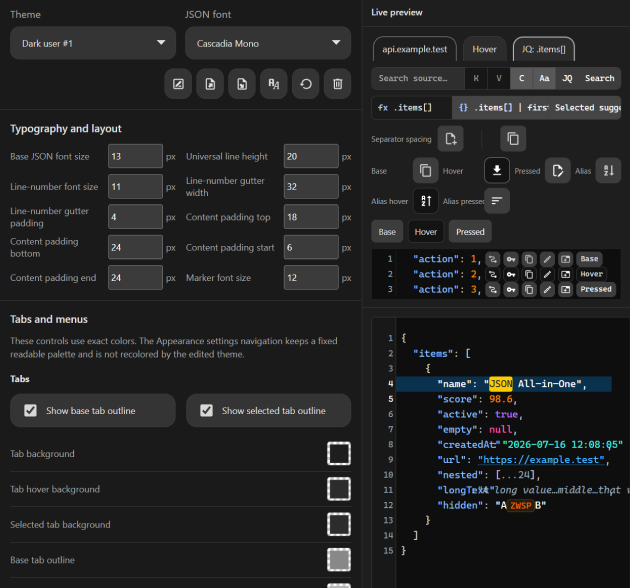
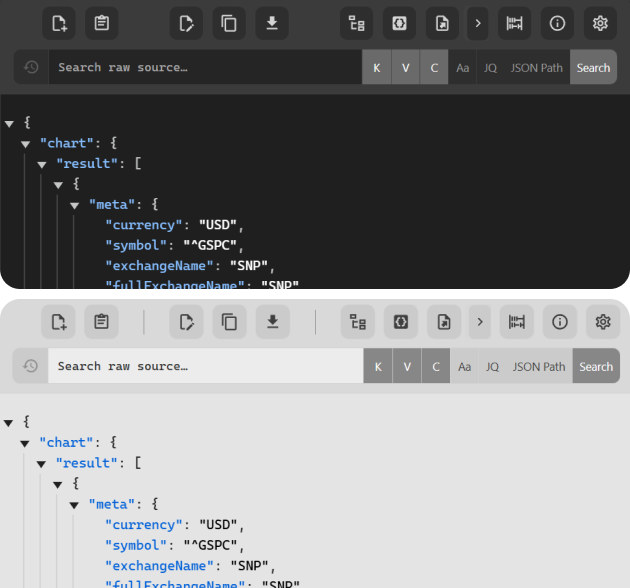
Tune editor, tree, query, match, and chart colors with a detailed theme composer. Preview changes immediately, export a reusable theme, and import it in another workspace.
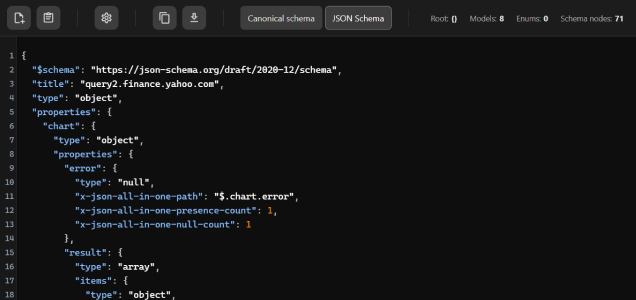
Infer a canonical model and export JSON Schema.
Create typed models for your stack.
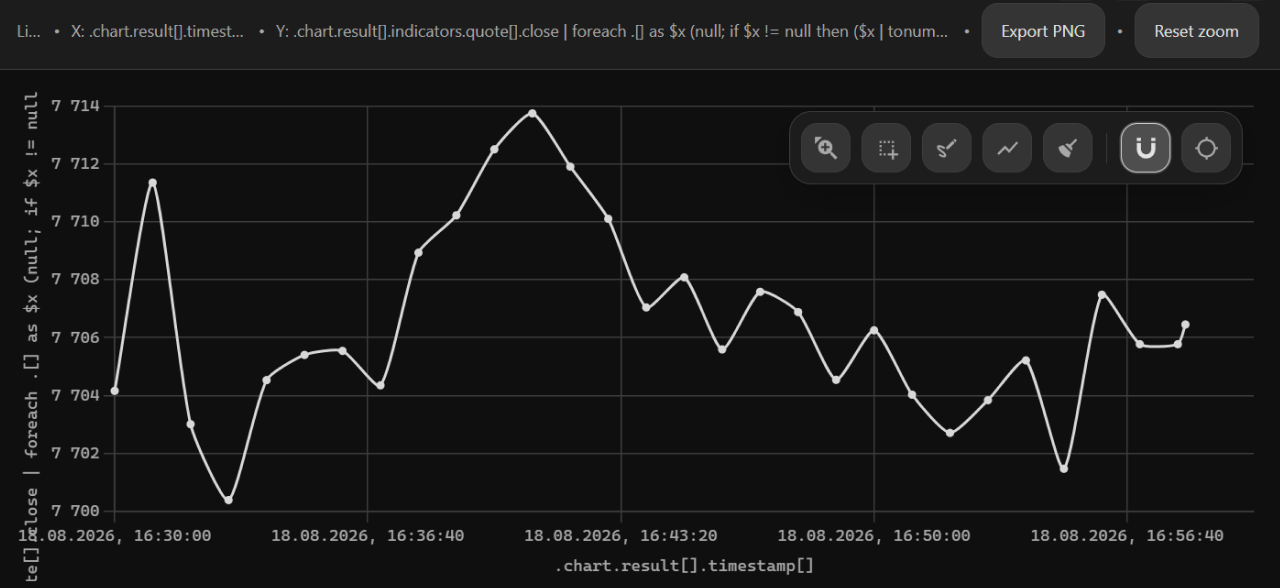
Turn selected JSON data into interactive charts.
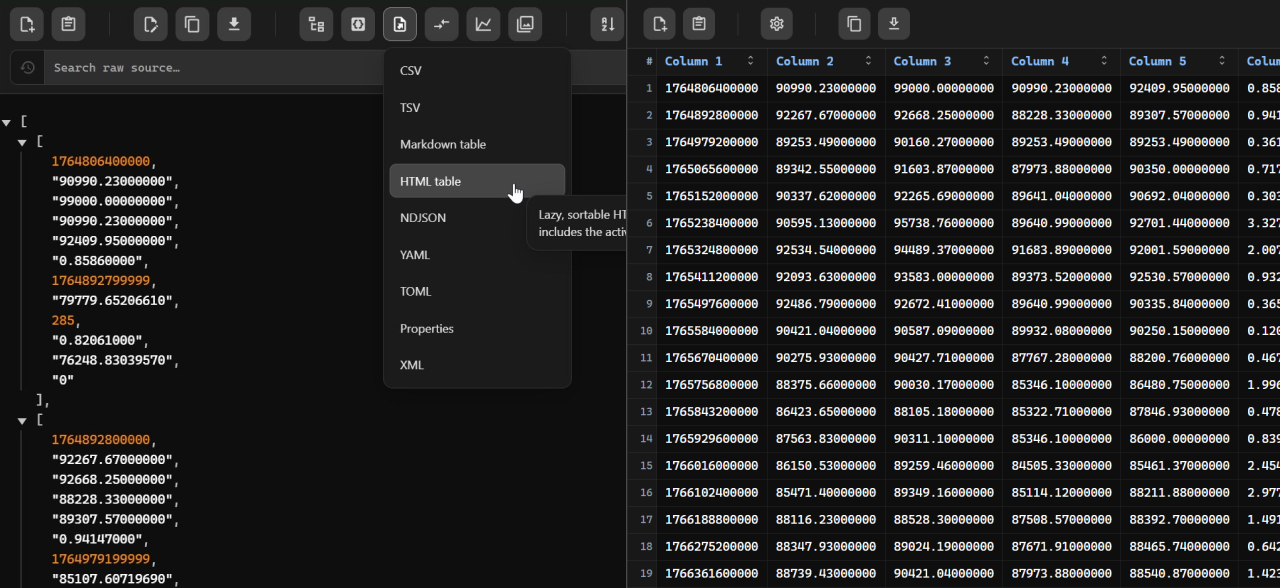
Move JSON into practical handoff formats.
Build line, area, bar, pie, and doughnut charts from opened JSON. Select the data with JQ, adjust axes and series, inspect values interactively, and use optional AI assistance to suggest a chart from the structure you already opened.
Infer models from real JSON and generate a practical starting point for TypeScript, Python 3, Java, Kotlin, C#, Go, or Rust. Review names, types, optional fields, and enums before copying the generated code into your project.
Export JSON as CSV, TSV, Markdown or HTML tables, YAML, TOML, Properties, XML, or NDJSON. Format-aware options preserve useful structure, while deterministic tabular columns make repeated exports easier to compare and automate.
Analyze an existing document to reveal its objects, arrays, value types, optional fields, and repeated literal choices. Inspect the canonical model graph, then export deterministic JSON Schema as a documented starting point for validation and code generation.
+ Full functionality for free + Open, inspect, search, query, chart, export, compare, and generate code + Local-first workspace with optional AI and image workflows + Occasional dismissible reminders
+ Same complete feature set as Freemium + No reminders + One-time license, no subscription + Supports continued development
Refund policyBuy lifetime licensePractical answers for opening, understanding, querying, validating, formatting, and comparing JSON-family documents.
Open the file in a structured viewer that displays formatted text and a collapsible tree. The tree makes nested objects and arrays easier to follow without manually counting brackets. JSON All-in-One opens JSON-family documents in both views, letting you inspect keys and values without modifying the source content.
JSON is a lightweight text format for structured data built from objects, arrays, strings, numbers, booleans, and null. Its straightforward syntax lets people and software exchange data across languages and platforms. Formatted text or a tree view makes the relationships between keys and values easier to follow.
A JSON file stores structured data using JSON syntax, typically with a .json extension. It might hold application configuration, exported records, or program data. Before editing, open it in a structured viewer to confirm that the nesting is readable and the content matches what you expect.
JSON format is the syntax used to express structured data: quoted property names paired with values, objects enclosed in braces, and arrays enclosed in brackets. Whitespace is optional for machines but valuable for readability. Consistent indentation makes a JSON document much easier to inspect and debug.
NDJSON places one self-contained JSON value on each line, making it well suited to streams and records processed line by line. A regular JSON file typically contains one top-level object or array. Use a tool that recognizes NDJSON, JSONC, and NDJSONC so each document is interpreted in its actual format.
JQ lets you filter, transform, and extract parts of JSON with concise local expressions. Start with a small filter that targets the key or array you need, review the result, and then refine it. JSON All-in-One can run local JQ against the document you are inspecting.
JSON Schema describes the expected shape of a JSON document, including required properties, value types, and allowed structures. It is useful for documenting data contracts. JSON All-in-One can infer and export JSON Schema from an existing document; review inferred rules before treating them as a complete specification.
Check that brackets are balanced, commas are placed correctly, strings are quoted, and values follow JSON syntax. JSON All-in-One validates JSON and helps surface syntax problems before you save the document or pass it to another system. Review each reported issue in the surrounding structure before correcting it.
JSON is widely used for configuration files, exported datasets, and structured data exchanged between systems and APIs. Its nested objects and arrays keep related values together in a portable form. View a document as formatted text or a tree before editing, comparing, or passing it downstream.
Edit JSON in a structured editor that keeps nesting visible, then validate the document after every significant change. Common mistakes include misplaced commas, unmatched brackets, and unquoted keys. JSON All-in-One can edit, format, beautify, and minify JSON so you can review the result clearly.
A basic JSON example is an object with named properties, such as a title string, a numeric ID, a boolean flag, or an array of items. Real documents often nest several objects and arrays. Formatted text or a tree view makes each key-to-value relationship and structural boundary clear.
JSONPath is a standardized query notation for navigating JSON structures and selecting matching values. Start at the root, target the property or array you want, and test the expression against a small known document. JSON All-in-One supports RFC 9535 JSONPath for local inspection of structured data.
Formatting adds consistent indentation and line breaks while leaving the data unchanged. This makes nested objects, arrays, and syntax problems easier to spot. JSON All-in-One can format, beautify, or minify JSON depending on your need; validate the result before another application consumes it.
Yes. JSONC is JSON extended with comments, so a strict JSON parser may reject it. Use a viewer that explicitly supports JSONC, NDJSON, and NDJSONC so the file opens in the correct mode and you can inspect its structure and comments before making changes.
Use a tool designed for large documents and focus on the section you need instead of expanding every branch. A tree view, JSONPath expression, or local JQ query can narrow the inspection. JSON All-in-One is designed for large documents, subject to browser and device limits.
Choose the target structured format first, then check how it represents fields, nesting, and data types. Conversion can change how repeated or numeric values are expressed. JSON All-in-One can export structured formats from JSON; inspect the output carefully before passing it to another tool or system.
Search for a specific key, value, or distinctive string, then inspect the surrounding object or array to understand the context. In large or deeply nested documents, a JSONPath expression or local JQ filter can narrow the result more precisely than plain text search.
Compare differences in keys, values, types, and nested structure rather than relying on line order alone. Format both documents consistently first, then review each difference in context. JSON All-in-One can compare JSON documents so you can examine the changes systematically.