 JSON All-in-One

How to open a JSON file
A JSON file is a data file, not a program you run. You can open it in a text editor to see the raw source, but a structured viewer is usually easier when the file has nested objects, arrays, long strings, or many records.
This guide uses JSON All-in-One in Chrome as the structured-viewing route and explains the common installed-user problem: local file:// access may need to be enabled in Chrome's extension settings.
Three ways to open a JSON file
To open a .json file, use a text editor for raw source, Chrome for quick viewing, or a structured JSON viewer for navigation. JSON is plain text with a data structure, so treat it as data rather than an executable file.
There are three common sources: a local file from your computer, a URL that returns JSON, and text pasted or imported into a workspace. Each source has different browser permissions and troubleshooting steps.
{
  "project": "demo-api",
  "enabled": true,
  "owners": ["Lin", "Mara"],
  "limits": { "requestsPerMinute": 120 }
}
Install and check file access
Install JSON All-in-One from the public Chrome Web Store listing. The normal user path is the store listing, not development-only load-unpacked setup.
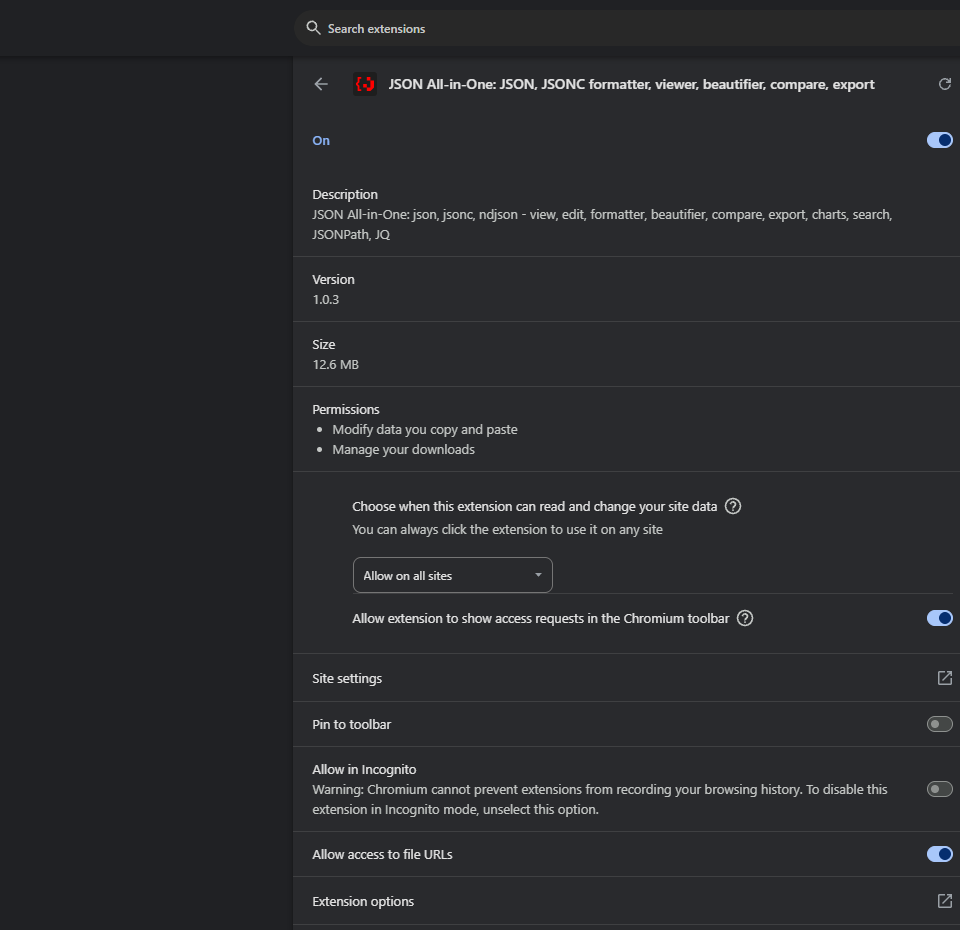
For files opened through a file:// URL, Chrome controls whether an extension can run on local files. Open the extension details page and enable Allow access to file URLs when you want direct local file navigation to be detected. JSON All-in-One exposes a shortcut to the Chrome permissions page, but the switch itself belongs to Chrome.
- Open
chrome://extensions/. - Find JSON All-in-One and open Details.
- Enable
Allow access to file URLsif you want directfile://viewing. - Reopen the local
.jsonfile after changing the setting.
Open a small verified file
Start with a small synthetic file before trying a large export. Save the sample as demo-api.json, then open it in Chrome or through the JSON All-in-One workspace. Confirm that the root object expands, the owners array has two items, and limits.requestsPerMinute is visible.
This gives you a known-good path. If the small file opens but a large export struggles, the problem is likely input size, source shape, or a later operation rather than basic installation.
Troubleshooting by symptom
If Chrome shows raw text for a local file, first check the file URL permission. If a URL downloads instead of opening, the server may be using download-oriented headers or a media type that Chrome treats as a download. That is not the same as a viewer failing.
If another extension changes the page, use a clean profile or temporarily disable competing viewers. If the source is an HTML page containing embedded JSON, treat it as an HTML page first; ordinary HTML pages can contain JSON fragments without being JSON documents.
| Symptom | Likely cause | Next step |
|---|---|---|
| Local file stays as raw text | File URL access is disabled | Enable Allow access to file URLs and reopen |
| Remote URL downloads | Server asked the browser to download | Respect the download, then open the saved file if appropriate |
| Viewer opens but query is unavailable | Source is still loading or not a JSON-family tab | Wait for load or check the source format |
| One-line log file is confusing | It may be JSONL/NDJSON or just one JSON value | Read the JSONL and NDJSON guide |
What file access means
File URL access lets the extension detect and read local files you open through Chrome's file:// route. It is about Chrome's local-file permission, not a paid-only workflow or a promise that every later operation has the same cost.
Core JSON-family workflows run in the browser workspace. Some optional features, such as explicitly invoked AI prompts or image fetching, have separate network boundaries and should be explained where those features are used.
Next step
Once the file opens, use the tree to understand its shape. For commented configuration, continue with JSON with comments. For a large export, continue with Open large JSON files in Chrome.
Keep going
Open large JSON files in Chrome
A practical local workflow for inspecting large JSON files in Chrome while choosing operations that fit the data shape.
JSON with comments: working with JSONC files
Understand why strict JSON rejects comments, how JSONC differs, and how to inspect commented configuration safely.
How to open JSONL and NDJSON files
Understand JSON Lines and NDJSON, open record streams safely, and query them as an array in JSON All-in-One.
JSONPath examples for nested objects and arrays
Learn supported RFC 9535 JSONPath patterns for selecting fields, array items, recursive matches, and filtered records.